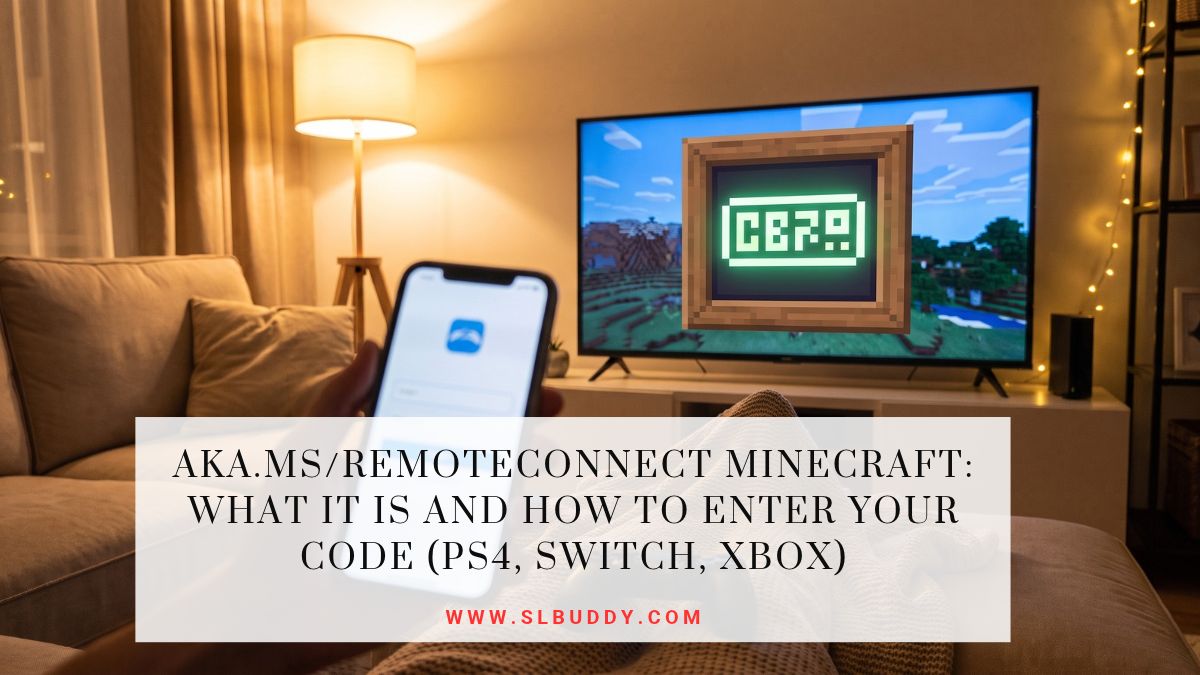
Short answer: aka.ms/remoteconnect is a Microsoft page where you type the short code shown on your game screen. It links your Microsoft account to Minecraft on a console like PS4, PS5 or Nintendo Switch. You open it on a phone or computer, enter the code, sign in, and the game logs you in. It’s safe as long as the address is exactly right.
If you landed here because Minecraft showed you a strange code and a web address, you’re in the right place. It looks suspicious the first time, but it’s a normal sign-in method.
Also, you will be able to know:
ToggleWhat is aka.ms/remoteconnect Minecraft?
Typing a long email and password with a console controller is miserable. So Microsoft lets you sign in on a second device instead.
The “aka.ms” part is just Microsoft’s official link shortener. When you visit aka.ms/remoteconnect, it forwards you to a Microsoft sign-in page that asks for a code. That code tells Microsoft which console is waiting to be signed in.
Minecraft needs this because Bedrock Edition (the version on consoles) uses a Microsoft account for multiplayer, Realms, the Marketplace and cross-play with friends on other devices.
Note that people search for this with “https” or “http” in front. Always type it as aka.ms/remoteconnect, and check that the page you land on is a Microsoft sign-in page.
How to Enter the Minecraft Code (Step by Step)
These steps are nearly identical on every console.
- Start Minecraft on your console and choose Sign in with a Microsoft account.
- The game shows a code, usually 8 characters, with the web address.
- On your phone or computer, open a browser and go to aka.ms/remoteconnect.
- Type the code exactly as shown.
- Sign in with the Microsoft account you want to use, or create one if you don’t have one.
- Go back to your console. It should log you in within a few seconds.
Tip: The code expires after a limited time (around 15 minutes). If it stops working, close the screen on the console and start the sign-in again to get a fresh one.
Console-Specific Instructions
| Device | Where to start | What’s different |
|---|---|---|
| PS4 / PS5 | Main menu, then Sign in with a Microsoft account | You may need to sign in to PlayStation Network first |
| Nintendo Switch | Title screen, then Sign in with a Microsoft account | Keep your Nintendo account separate; this is only for Minecraft |
| Xbox | Usually signs in automatically | You rarely need the code on Xbox |
| Other devices | Settings or sign-in screen | Same code flow |
https aka.ms remoteconnect Minecraft PS4
On PS4, open Minecraft and select the Microsoft sign-in option. A code appears on the TV. Enter it at aka.ms/remoteconnect on your phone. If your PS4 asks you to update the game first, do that, since an old version can break sign-in.
https aka.ms remoteconnect Minecraft Nintendo Switch
On Switch, the same screen appears when you pick the Microsoft sign-in option. People often type the code into the wrong site. Make sure the address bar says aka.ms and the page is Microsoft’s.
Sign up (no account yet)
You don’t need an account before you start. When you reach the Microsoft sign-in page on your phone, tap Create oneand make a free account. Then enter your code and finish the process.
Common Problems and Fixes
“That code isn’t valid” or the code doesn’t work.
Check for letters that look like numbers (O and 0, I and 1). If it still fails, the code has probably expired. Restart the sign-in on your console.
The page won’t load.
Try another browser, turn off a VPN, or switch from Wi-Fi to mobile data.
Signed in, but the console doesn’t respond.
Close Minecraft completely and reopen it. Make sure the console is online.
Wrong account signed in.
Sign out of Microsoft in your browser first, or use a private window, then try again.
Child account blocked.
Accounts for kids need a parent’s permission through Microsoft Family settings before multiplayer works.
Is It Safe?
Yes, if you follow a few rules:
- The real address is aka.ms/remoteconnect. Anything with extra words or a different ending is not it.
- The page should ask only for your code and your Microsoft login.
- Never share your code or password with anyone, including people claiming to be “Minecraft support.”
- Turn on two-step verification on your Microsoft account.
Microsoft’s own support pages and the official Minecraft Help Center describe this device-code process, so check those if you ever feel unsure.
Frequently Asked Questions
What is aka.ms/remoteconnect for Minecraft?
It’s Microsoft’s page for entering the code that links your account to Minecraft on a console.
How long does the code last?
Roughly 15 minutes. After that, request a new one.
Do I need to pay?
No. The sign-in is free. You only pay if you buy the game or add-ons.
Can I use the same Microsoft account on PS4 and Switch?
Yes, which also lets you keep your purchases and friends list across devices.
Does this work for Minecraft Java Edition?
No. This is for Bedrock Edition on consoles. Java uses the launcher on PC.
What to Do Next
- Finished signing in? Add your friends and try a Realm.
- Still stuck? Restart the console, update Minecraft, and try a new code.
- Looking for more guides like this? Check our other tutorials at slbuddy.com.

The SLBuddy team researches and tests the apps, games, and products we cover so you don't have to dig through marketing pages to find what actually works. We update our guides as products change and welcome corrections from readers — drop us a note on the Contact page if something's out of date.

MUST SEE
-
 / 2 weeks ago
How to Fix a Cracked Laptop Screen Without Replacing It
Cracked laptop screen and no budget for a new panel? Learn which damage can...
By Maical -
 / 2 weeks ago
aka.ms/remoteconnect Minecraft: What It Is and How to Use It
Minecraft showed you a code and told you to visit aka.ms/remoteconnect? It’s Microsoft’s device...
By SLBuddy Team -

 / 3 weeks ago
Why Choose a Content Marketing Consultant for Small Businesses?
Struggling to generate consistent leads? Discover how a professional content marketing consultant for small...
By Michael