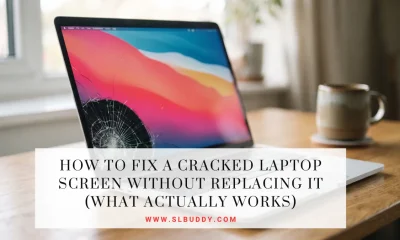
Short answer: If the crack is in the laptop’s LCD panel (the part that makes the picture), you can’t truly repair it. Glue, tape and “crack fixer” products don’t bring back dead pixels or black patches. What you can do without buying a new screen is: stop the crack from spreading, protect your eyes and fingers from the damaged area, or plug in an external monitor and keep using the laptop as a computer. The only exception is a cracked outer glass or protective layer on certain laptops, which can sometimes be fixed on its own.
I’ll be upfront about that, because many guides online promise a miracle fix with superglue or toothpaste. It doesn’t work, and it can make things worse.
First, Figure Out What’s Actually Cracked
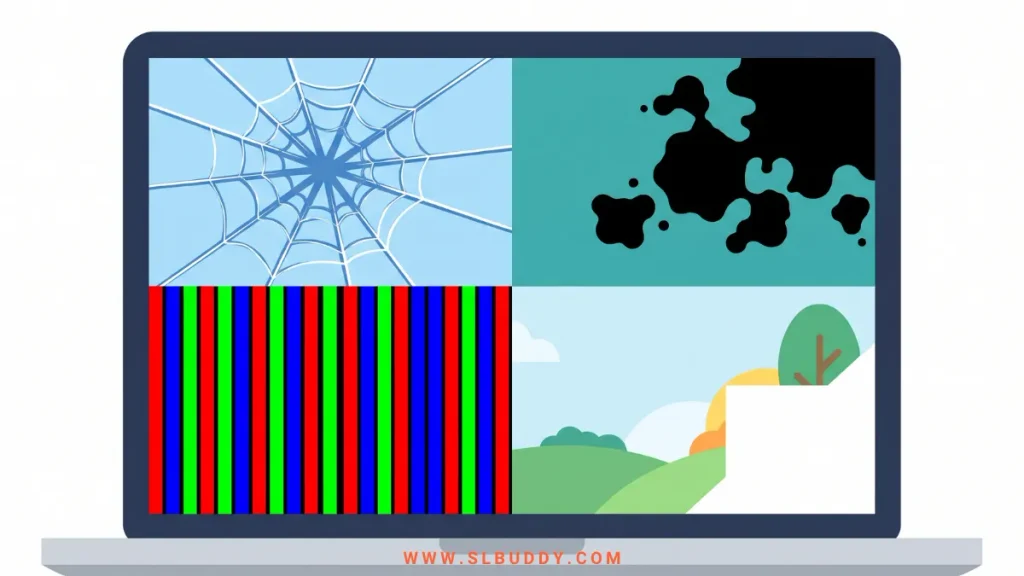
This decides everything. Turn the laptop on and look closely.
| What you see | What it usually means | Fixable without a new screen? |
|---|---|---|
| Spiderweb lines on the glass, but the picture underneath is fine | Only the outer glass or cover layer is cracked (common on touchscreens and some glossy panels) | Partly. You can stabilize it, and sometimes replace just the glass |
| Black ink-like patches or spreading dark spots | The LCD itself is damaged | No |
| Colored lines (vertical or horizontal) across the display | Internal LCD or cable damage | No |
| Part of the picture is missing or shows white or gray | The panel is broken | No |
| Screen is completely black but you hear the laptop running | Backlight or display cable problem | Maybe, check with an external monitor |
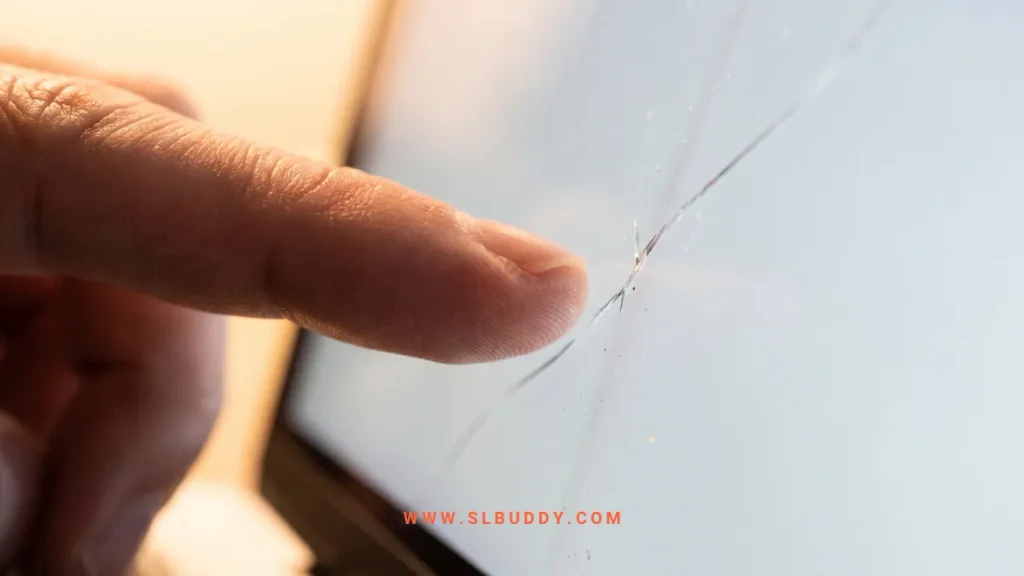
| Hairline scratch you can feel with a fingernail, picture normal | Surface scratch or very light crack | Yes, a stopgap |
Quick test: Run your fingernail over the crack. If it catches, the crack is in the top layer. If the picture itself looks broken whether you touch it or not, the LCD is the problem.
Options That Work Without Replacing the Screen
1. Stop the crack from spreading
A crack grows when the screen flexes, heats up and cools down, or gets pressure when you close the lid.
- Don’t press on the screen or wipe it hard.
- Keep nothing between the keyboard and the screen when you close the lid (an earbud case or pen can cause a crack).
- Carry the laptop in a padded sleeve, not loose in a bag with other things.
- Keep it away from heat, such as a car dashboard.
2. Cover a surface crack with a screen protector
For a crack in the top layer only, a clear, thick laptop screen protector or a tempered film cut to size keeps the pieces from shifting and protects your fingers. It won’t fix the picture. Think of it as a bandage.
3. Use a clear tape or film as a short-term barrier
Wide clear packing tape across a chipped edge stops tiny glass pieces from coming loose. It looks bad and leaves residue, so treat it as a temporary measure.
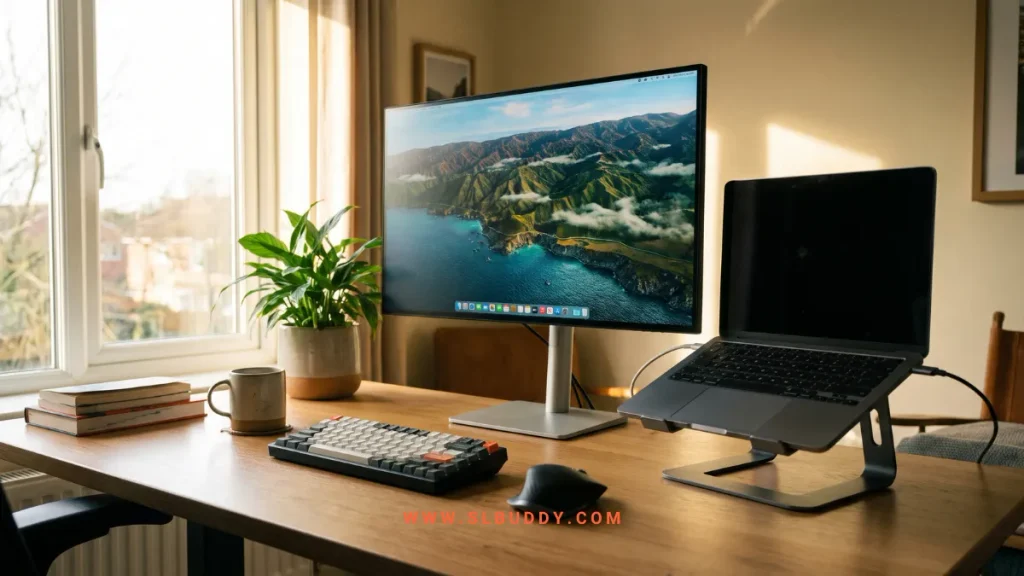
4. Plug in an external monitor (the best real workaround)
This is the option most guides skip, and it’s often the smartest one. If the laptop itself still works, you can use it like a small desktop.
- Plug a monitor or TV into your laptop’s HDMI, USB-C or DisplayPort port.
- Press Windows + P on Windows and choose Second screen only (or Extend). On a Mac, go to System Settings > Displays.
- Add a keyboard and mouse if you’re keeping the lid closed.
A basic used monitor often costs far less than a laptop panel plus the repair labor, and it means you stop looking at the damage entirely.
5. Fix a loose display cable (only if the screen is flickering, not cracked)
Sometimes a “broken” screen is actually a loose cable. If the display flickers when you move the lid, the cable behind the hinge may be loose or worn. A technician can reseat it. This isn’t for you to attempt unless you’re comfortable opening your laptop, since it can void a warranty.
6. Replace only the cracked glass (touchscreens and some models)
Some laptops, mostly touchscreens and certain MacBook-style displays, have a separate layer of glass. In rare cases a repair shop can replace only that glass for less than a full panel. Ask a shop whether your model allows it. On most thin laptops the glass and LCD are one sealed unit, so this won’t be possible.
What Does NOT Work (Save Your Money)
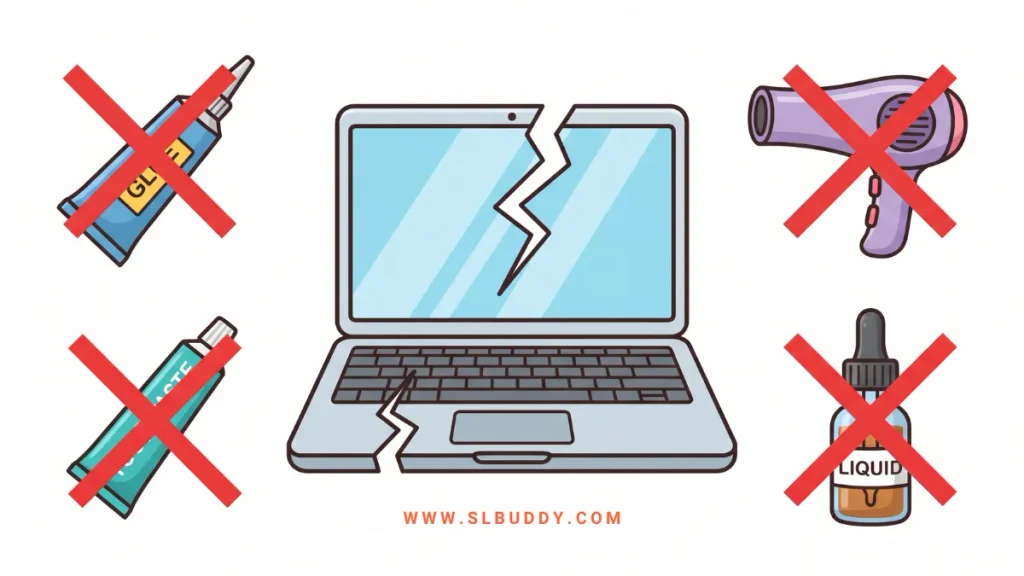
- Superglue or epoxy: It fogs, spills into the display and ruins the area around the crack.
- Toothpaste, baking soda, or other home “polish” tricks: These can fill a tiny scratch at best. They don’t repair a crack.
- Heat guns or hair dryers: The panel has plastic layers that can warp.
- “Crack repair” liquids sold online: These are for phones with scratched glass, not for an LCD with internal damage.
Is It Safe to Keep Using a Cracked Laptop Screen?
Mostly yes, with a few warnings.
- Cuts: Don’t touch sharp edges. Cover them with film or tape.
- Eye strain: Dark patches and lines make your eyes work harder, so take more breaks or switch to an external display.
- Spreading damage: The crack will usually grow with time.
- Liquid: Keep drinks away. A cracked panel lets liquid in more easily.
- Battery swelling or burning smell: If you notice either, stop using the laptop and get it checked right away.
Should You Repair It, or Just Replace the Laptop?
Use this rough rule:
| Situation | Better choice |
|---|---|
| Laptop is under 3 years old and the rest works well | Repair the panel |
| Laptop is 5+ years old and slow | Put the money toward a replacement or use an external monitor |
| Repair quote is more than half the cost of a similar used laptop | Don’t repair it |
| You mostly use it at a desk | External monitor |
| You travel with it | Repair the panel or replace |
Get at least two quotes, and ask whether the price includes parts and labor. Check whether your laptop is still under warranty or covered by accidental damage insurance, as some credit cards and home insurance policies cover screen damage.
Frequently Asked Questions
Can you fix a cracked laptop screen without replacing it?
Not the LCD panel itself. You can stabilize the crack, cover it, or use an external monitor. Only a cracked outer glass layer on some models can be repaired separately.
Does a cracked laptop screen get worse?
Usually yes, since daily opening, closing and heat put stress on it.
Can I use a screen protector over a cracked screen?
Yes, as a temporary barrier. It stops loose glass and protects your fingers, but it won’t improve the picture.
Can I use a cracked laptop with an external monitor?
Yes, as long as the laptop itself still runs and the video port works.
Does superglue fix a cracked laptop screen?
No. It can leak into the display and cause more damage.
Is it worth replacing a cracked laptop screen?
It depends on the laptop’s age and the quote. If the repair costs more than about half the price of a comparable used laptop, it’s usually not worth it.
What to Do Next
- Check what’s damaged using the table above.
- If only the outer layer is cracked, apply a protector and be gentle with it.
- If the picture is damaged, connect an external monitor today so you can keep working.
- Get two repair quotes and check your warranty or insurance.
- Back up your files now, because a cracked screen can fail completely without warning.
Looking for more practical tech guides? See our other tutorial, “How to fix DNS_Probe_Finished_No_Internet Error“